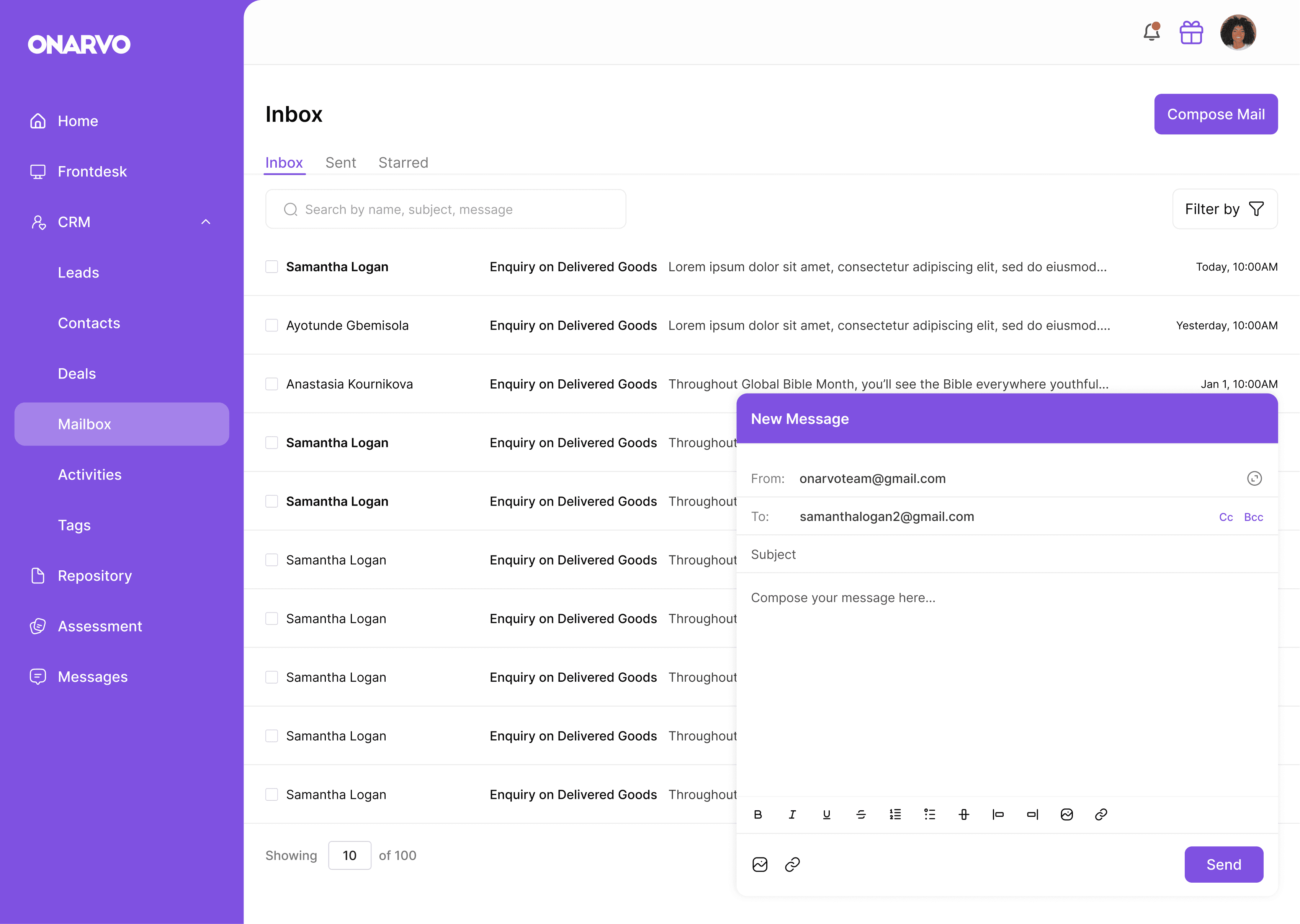
This product is a platform that helps businesses keep track of their customers and sales activities in one place. The platform is built around four main features: Leads, Contacts, Deals, and Activities. These features work together to help teams manage potential customers, build relationships, and close business opportunities without losing information along the way.
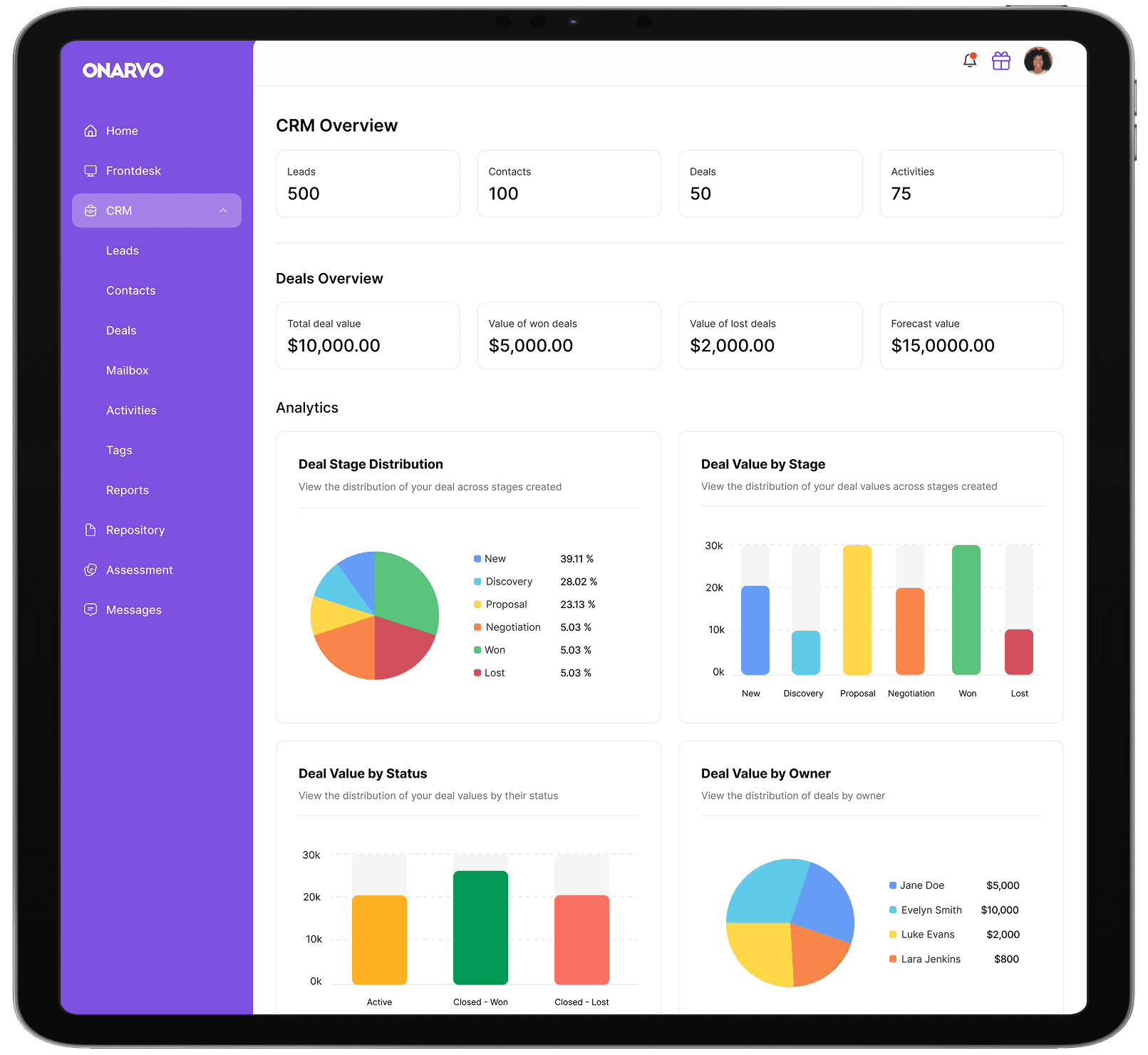
This CRM is a simple, all-in-one workspace designed to help sales teams stay organized. It replaces messy spreadsheets and scattered notes with a clear system to track customers from the first hello to the final sale. By centralizing leads, contacts, deals, and activities, the platform ensures that no opportunity is forgotten and every follow-up happens on time.
Small and medium sized small team often struggle because:
Information is scattered: Customer information is stored in different tools or spreadsheets
Missed follow ups: They forget to follow up with potential customers
Confusion: They don’t know which sales are almost finished and which are just starting.
Lost History: When a team member is away, no one knows what was last said to the customer.
All these makes it easy to lose leads and miss deals
The goal was to create a tool that is so simple that teams actually want to use it. It needed to:
Keep track of potential customers from first contact
Turn those people into permanent contacts
Show a clear list of "Deals" (money-making opportunities).
Show a history of every call or email in one timeline.
I designed the app around a simple 4-step flow that matches how a real sale happens
Leads: You meet someone new. They are a "Lead."
Contacts: When qualified, the lead becomes a Contact.
Deals: When they want to buy something, you create a "Deal" to track the progress.
Activity: Every time you talk to them, you log an "Activity" (like a call or a meeting).
The Result: No more lost sticky notes. Everything is organized in one path from "Hello" to "Closed."
Sales Representative
Business Owners
Account Officers
For the Sales Representative
As a Sales Rep, I want to see a list of my New Leads every morning so I know exactly who to call first.
As a Sales Rep, I want to log an activity after I make a call or finish a meeting, so I can document what the customer said during that call/meeting
As a Sales Rep, I want to see a kaanbard board to move deals across stages so that my boss can see that the progress of my deals.
For the Business Owner
As a business owner, I want to see a summary of all deals in progress so I can predict how much money the company will make this month.
As a business owner, I want to see how many leads were lost so I can understand how to improve our sales process.
Research
I looked at how different businesses work and found a major problem: their information was not in one place. Because of this, they didn't know which customers to talk to, which deals were the most important, or who they needed to follow up with.
User Path Mapping
I mapped out a clear path: Leads → Contacts → Deals → Activities. I organized the product around these sections so that every business deal has a clear home and a clear next step.
Design
I built a clickable model to test the logic of the app. I focused on the conversion button, making sure that turning a lead into a contact felt like a single, seamless action.

Leads
Leads are people or businesses that may be interested in working with you. Lead management is about adding or importing these leads, saving important details like their name, company, email, and potential value, moving them through stages such as New, Qualified, or Lost, and finally converting them into contacts. Below is a step-by-step view of the lead flow.


Contacts
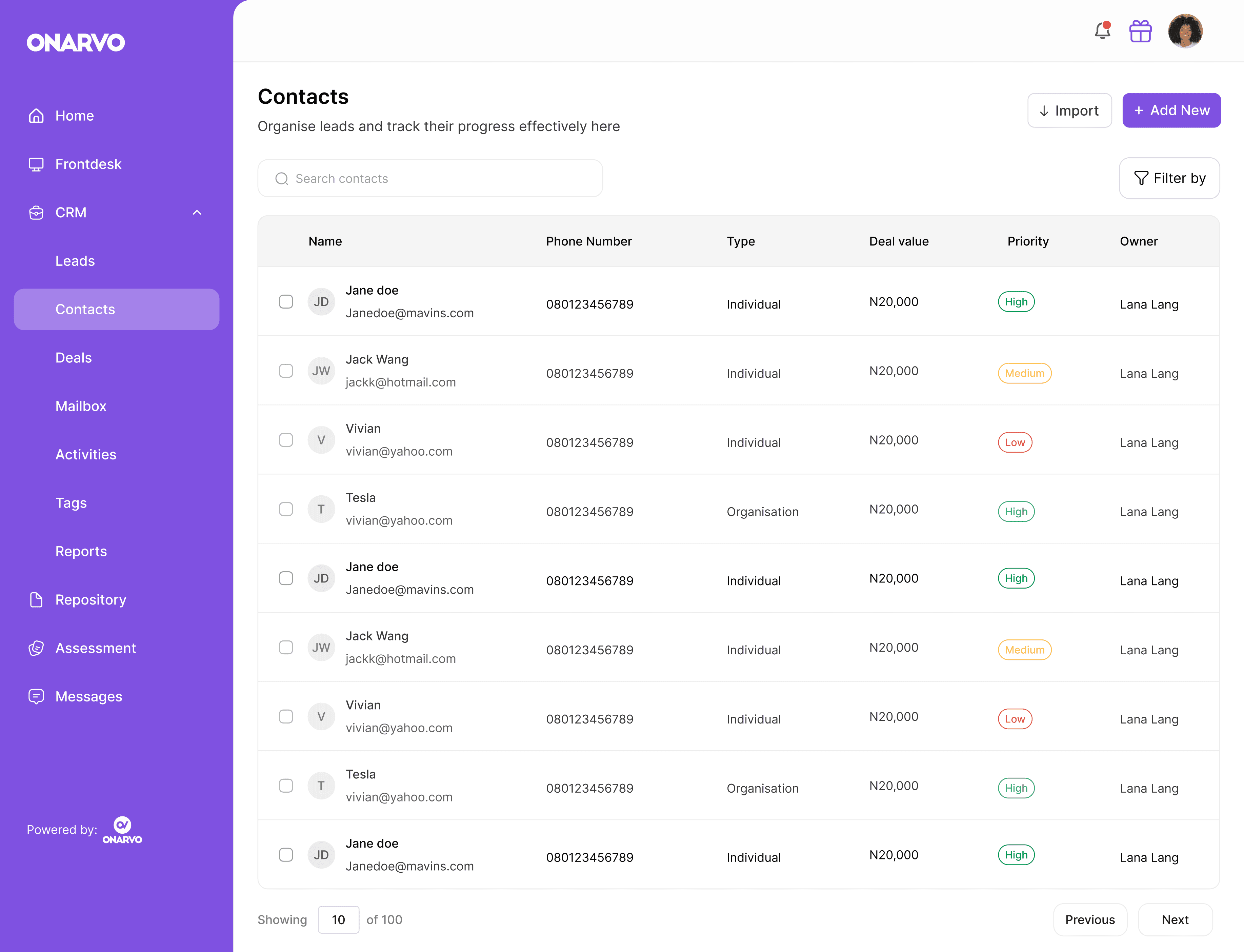
Contacts are your directory of people or businesses you can pursue opportunities with. They are created from converted leads but can also be added manually or imported. Contacts are then used to manage and pursue business opportunities, known as deals. This way customers contacts are stored in one place rather than different avenues like spreadsheets etc
Deals
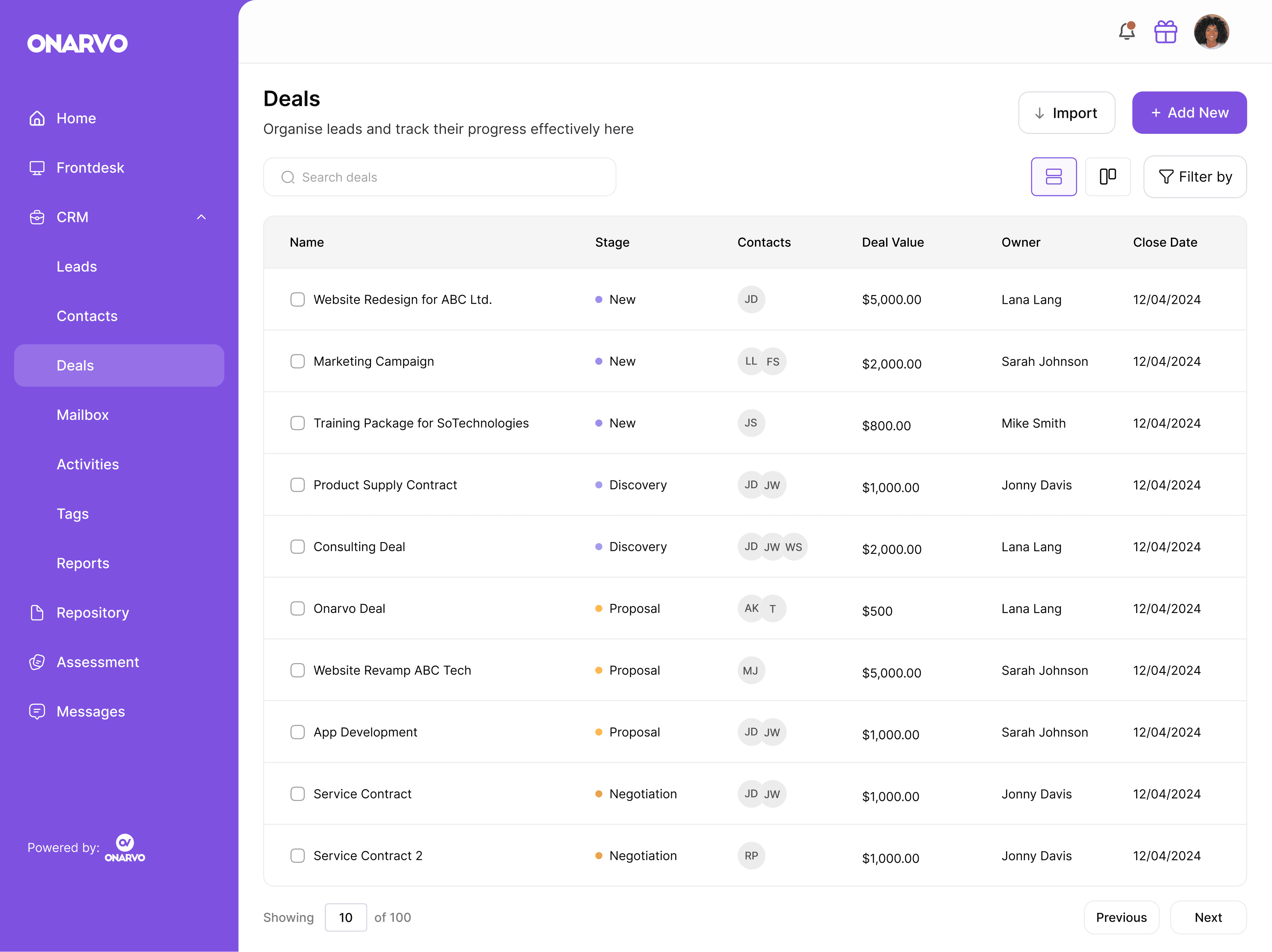
Deals represent business opportunities you have with your contacts. These could include projects such as designing a website for an agreed amount. Each deal moves through stages like New, Proposal Sent, Won, or Lost. The goal of every deal is to be won, meaning the opportunity was successful and your business has earned—or will earn—revenue from it. Below is the deals screens, this way you can have a view of your ongoing sales opportunities
Activities
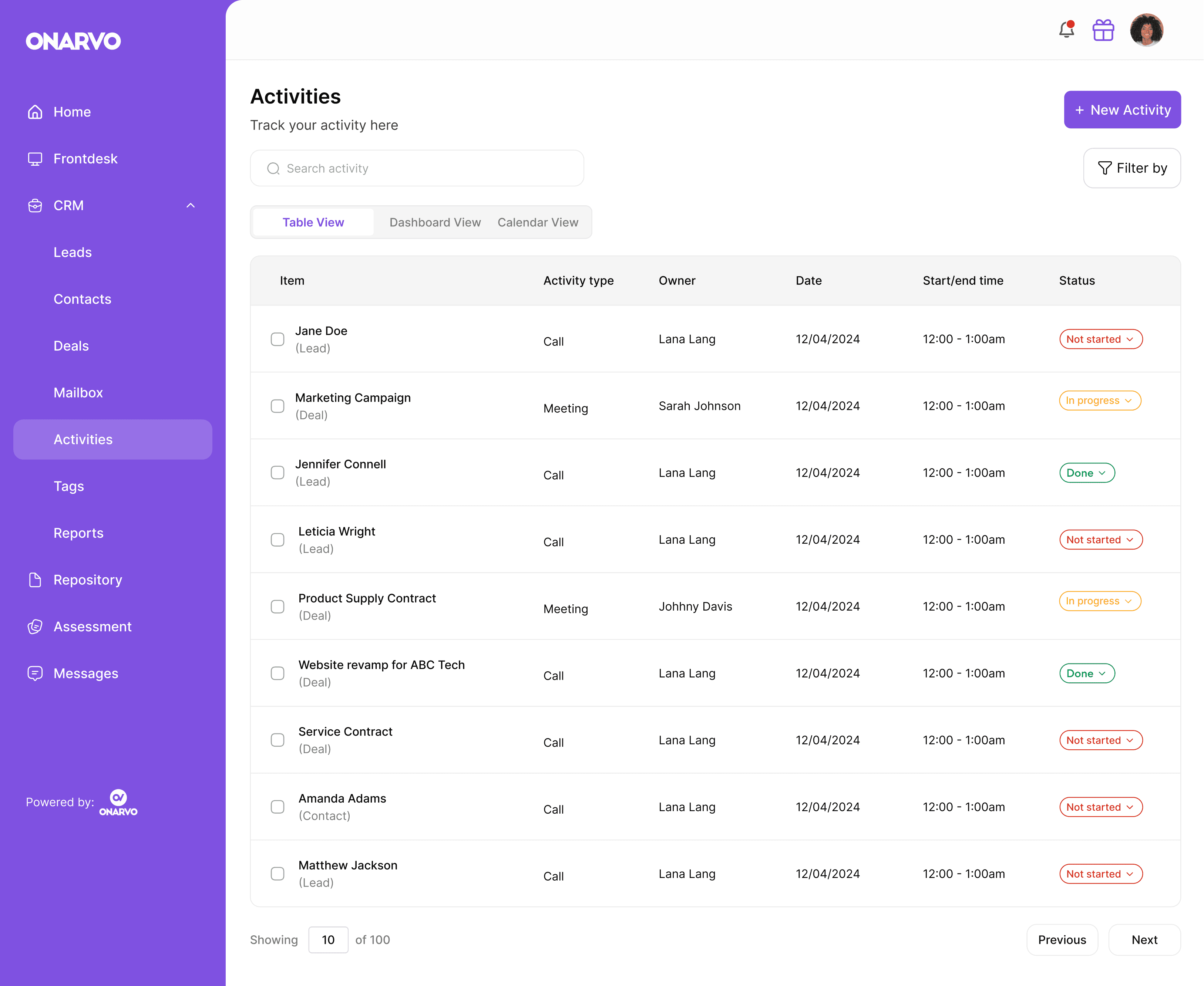
Activities are actions such as calls, meetings, or follow-ups created to help team leads or owners stay engaged with leads and contacts. They ensure that no opportunity is missed by providing a structured way to track communication, manage follow-ups, and maintain consistent engagement throughout the sales process.
Reports
These are drill-down analyses and visual reports that break down the data behind the key figures for deals, leads, and activities. They provide a clearer view of what contributes to each metric, helping users understand performance, track progress, and identify trends at a glance. Below is a visual representation of some of these data

Other Screens
In addition to the core CRM features, there are complementary screens that enhance the overall experience. One example is Mailbox Integration, which allows emails to be synced directly into the platform so all email conversations with leads and contacts can be viewed in one place. Another feature is Tags, which help organize and group items using custom labels—for example, a website redesign deal can be tagged as “Tech” to make it easier to filter, search, and manage related records.